How to connect to d Wi-Fi
Important Notice:
From December 10, 2025, users who do not have a DOCOMO mobile phone number in Japan will no longer be able to connect to d Wi-Fi using the automatic login method (SSID:0001docomo).
Users who subscribed to d Wi-Fi before December 10, 2025 can continue to use the d Wi-Fi Guest Mode (SSID:0000docomo) via web authentication.
Only users who subscribed to d Wi-Fi before December 10, 2025 can continue to use the service.
You can connect to d Wi-Fi via Guest Mode (SSID:0000docomo) by using web authentication with your d ACCOUNT and d Wi-Fi password.
You can connect to d Wi-Fi via Guest Mode (SSID:0000docomo) by using web authentication with your d ACCOUNT and d Wi-Fi password.
How to confirm the setting information
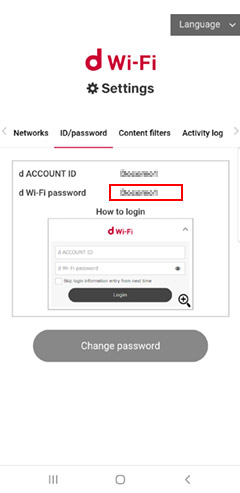
Network (SSID), password (security key), d ACCOUNT ID, and d Wi-Fi password can be confirmed on the d Wi-Fi setting site.
*Only users who subscribed to d Wi-Fi before December 10, 2025 have access.
*To confirm, you are required to log in to your d ACCOUNT.
*Only users who subscribed to d Wi-Fi before December 10, 2025 have access.
*To confirm, you are required to log in to your d ACCOUNT.
-
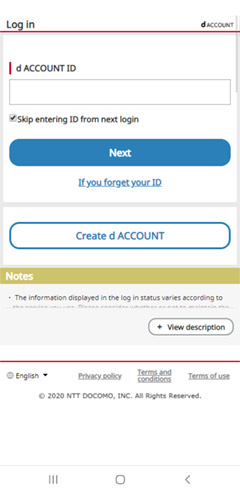
- (1) Access to the d Wi-Fi setting site
-
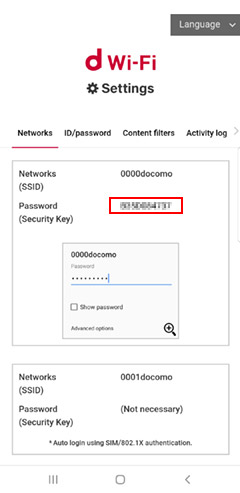
- (2) Confirm network (SSID) and password (security key).
-
-
(3) Click the ID/password tab and confirm your d ACCOUNT ID, and d Wi-Fi password.
*If you have not yet set a d Wi-Fi password, a message that says “Setting a password is necessary” will be displayed.
How to log in
-
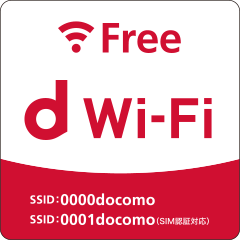
- (1)Make sure you are at a d Wi-Fi hotspot.
-
-
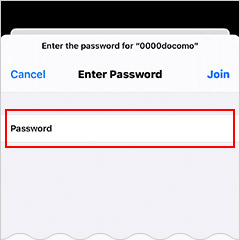
[2 For iPhone users]
From Settings, select 0000docomo from the list of Wi-Fi network names, enter password (security key) and tap connect.
-
-
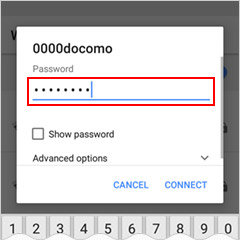
[2 For Android users]
From Settings, select 0000docomo from the list of network and Wi-Fi names, enter password (security key) and tap connect.
-
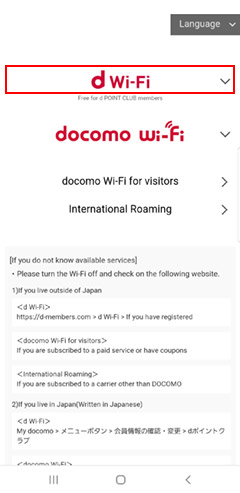
- [3] Tap d Wi-Fi
-
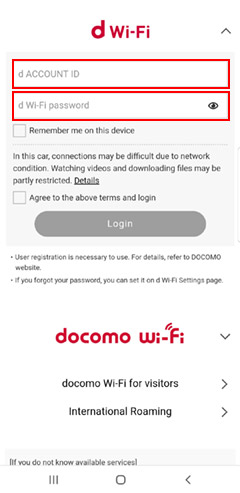
- [4] Enter your d ACCOUNT ID and d Wi-Fi password. If you want to save login information, click the checkbox. *1
-
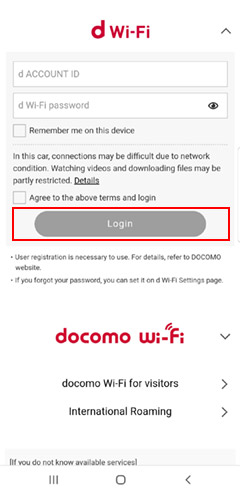
- [5] Tap Log In
-
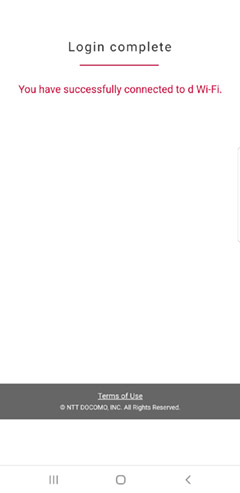
- [6] You will see the login completion screen and will be connected to d Wi-Fi.
-
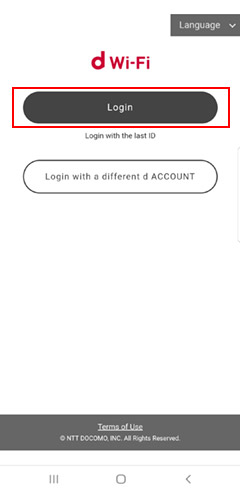
- If you save login information in step [4], you are not required to enter your d ACCOUNT and d Wi-Fi password the next time you login. *2
-
*1 If you do not want to save login information, uncheck the checkbox in step [4]. In this case, you are required to enter your d ACCOUNT and d Wi-Fi password the next time you login.
*2 d ACCOUNT ID and d Wi-Fi password can be saved up to 30 days.
*The login screen will appear when connecting to SSID:0000docomo (Guest Mode).
*Web authentication may not be available for some devices.
*Apple, Apple Logo, Apple Watch, iPad, and iPhone are trademarks of Apple Inc., registered in the U.S. and other countries. The iPhone trademark is used under license from Aiphone Co., Ltd. App Store, AppleCare, iCloud are service marks of Apple Inc., registered in the U.S. and other countries. TM and © 2020 Apple Inc. All rights reserved.
*Android is a trademark or registered trademark of Google LLC.
*Wi-Fi is a registered trademark of the Wi-Fi Alliance.
*Web authentication may not be available for some devices.
*Apple, Apple Logo, Apple Watch, iPad, and iPhone are trademarks of Apple Inc., registered in the U.S. and other countries. The iPhone trademark is used under license from Aiphone Co., Ltd. App Store, AppleCare, iCloud are service marks of Apple Inc., registered in the U.S. and other countries. TM and © 2020 Apple Inc. All rights reserved.
*Android is a trademark or registered trademark of Google LLC.
*Wi-Fi is a registered trademark of the Wi-Fi Alliance.